How to Open PST in Outlook?
The process to open PST file in Outlook is very simple; just follow the instructions given below
Steps to Open PST file in MS Outlook
In Outlook 2010 & below Version
Step 1 - Open MS Outlook & go to File >> Open >> Open Data File
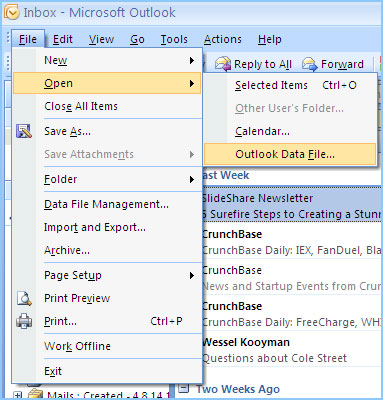
Step 2 - Browse & select PST file from the saving location & click on open
In Outlook 2013
Step 1 - Open MS Outlook & go to File » Open & Export » Open Data File
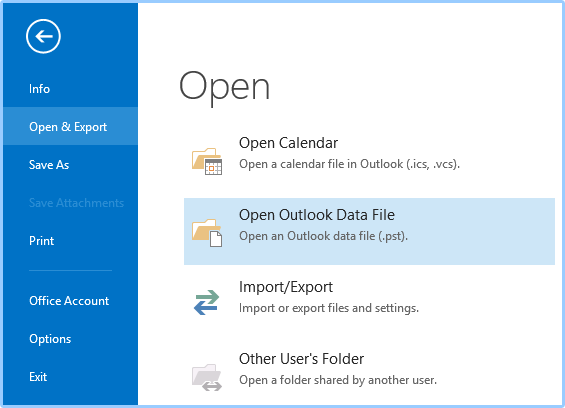
Browse & select PST file from the saving location & click on open
Steps to set PST as default File
In MS Outlook 2010 & below version
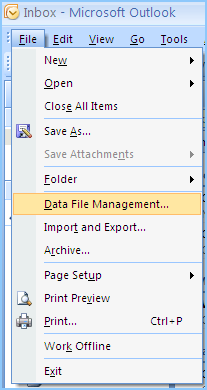
Step 1 - Go to File >> Data File Management
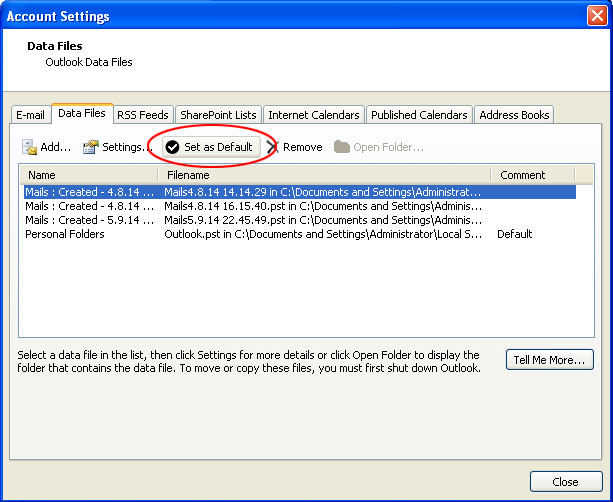
Step 2 - A new Windows will open, Select the PST file & Set as Default
In MS Outlook 2013
Step 1 - Go to File >> Info >> Account Settings >> Account Settings
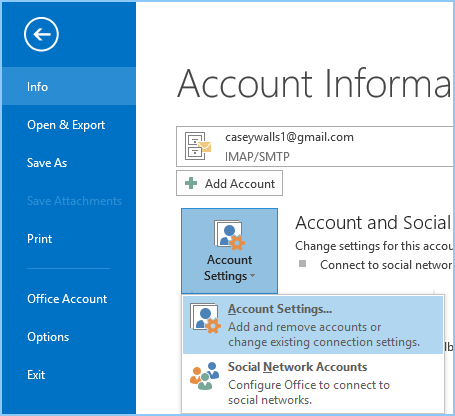
Step 2 - A new Windows will open, Select the PST file & Set as Default

Steps to Import PST in Outlook
In Outlook 2010 & below version
Step 1 - Go to File >> Import & Export
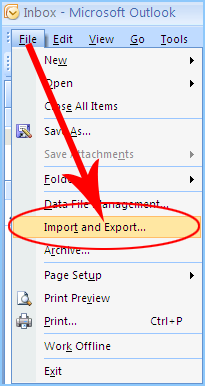
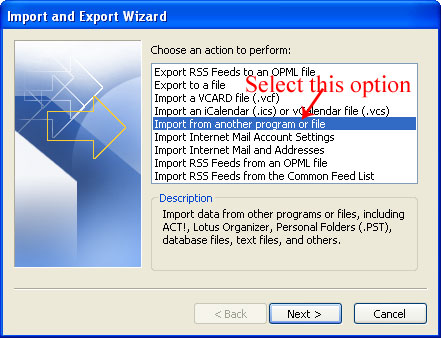
Step 2 - Select Import from another program or file, Click Next
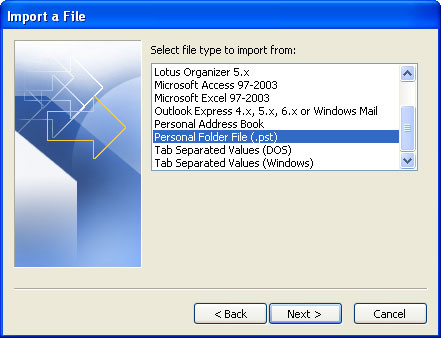
Step 3 - Select Personal Folder Type (.pst)
Step 4 - Browse for PST file you want to import, Click Next
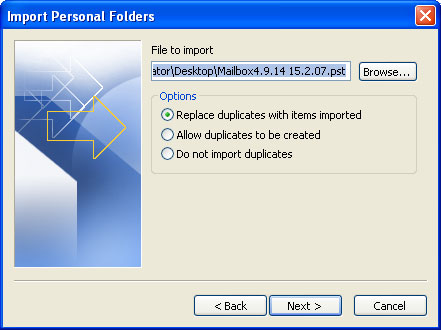
Step 5 - Select in which folder you want to import PST file into
Step 6 - Click Finish
In Outlook 2013
Step 1 - Go to File >>Open >>Import & Export
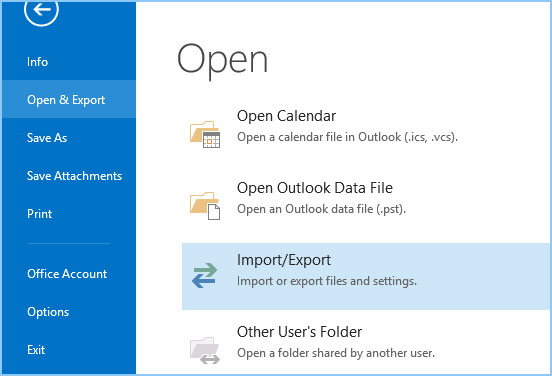
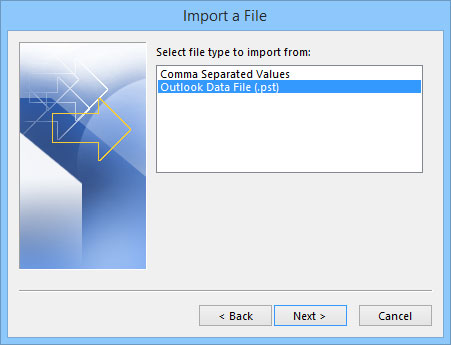
Step 2 - Select Personal Folder Type (.pst), click Next
Step 3 - Outlook Date File (.pst), Click Next
Step 4 - Select in which folder you want to import PST file into
Step 5 - Click Finish
